Homepage and a Single Dashboard for Every Service
A private dashboard for every homelab service: YAML config, automatic container discovery via Docker labels, why access stays behind a VPN, plus the Docker socket boundary and authentication.
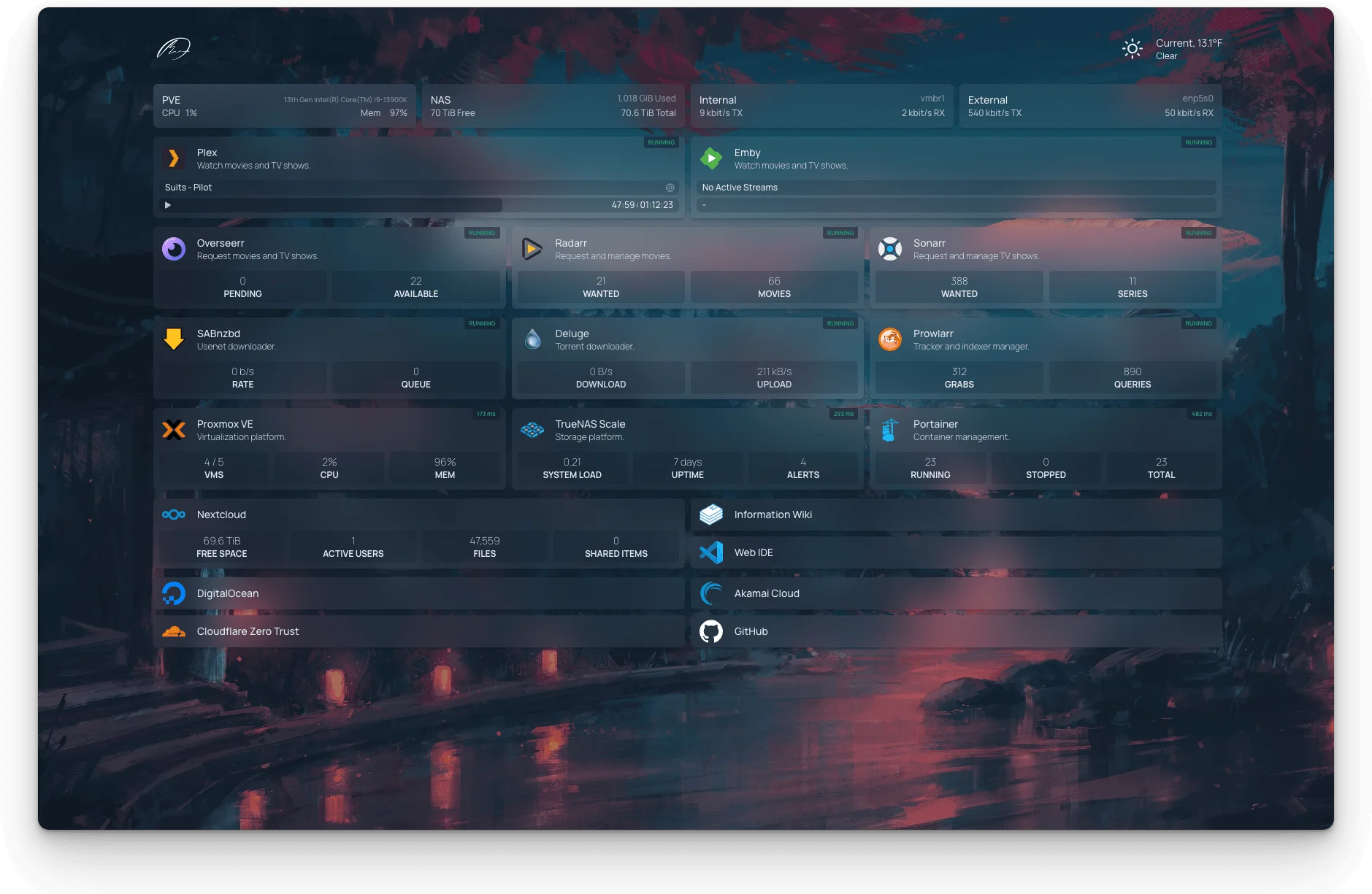
As services grow, a homelab gets harder to navigate from memory. Service A on one port, service B under some path, and so on. Homepage gives you a single place to see and reach every service on one page.
On my homeserver I keep Homepage for personal use: I reach it only through my Tailscale IP on a private network — no domain name, no port forwarding, no public route at all.
Why one dashboard for every service
When you only run a few services, opening one by port still feels fine; as they add up, remembering the right address becomes a job of its own: which port belongs to which app, what path to type, which service is down.
Homepage solves this with a single entry point: each service appears as a clickable card with an icon, status, and link.
How it works and the config model
Homepage is a self-hosted web application that works as a dashboard and a service catalog: it groups links, status, and extra information from many services into one interface.
All of Homepage’s settings live in YAML files inside the config directory mounted into the container. Each file has a distinct role:
services.yaml— the service list and its layout;settings.yaml— global settings such as language and theme;widgets.yaml— widgets and their API keys;bookmarks.yaml— bookmarks and quick links;docker.yaml— Docker integration config;custom.cssandcustom.js— advanced display tweaks.
Services are grouped as top-level array entries in services.yaml; each service has a name, icon, link, description, and optionally its own widget.
Because everything is file-based, the config can be read, version controlled, or restored. Note: the dashboard renders as static HTML — a change in settings.yaml needs to be regenerated with the refresh button.
Deployment with Docker Compose
The most common way to run Homepage is with Docker Compose:
services:
  homepage:
    image: ghcr.io/gethomepage/homepage:latest
    container_name: homepage
    ports:
      - "3000:3000"
    volumes:
      - /path/to/config:/app/config
      - /var/run/docker.sock:/var/run/docker.sock # only if Docker integration is needed
    environment:
      HOMEPAGE_ALLOWED_HOSTS: '*'
    restart: unless-stopped
The config volume survives container rebuilds; the socket mount enables container discovery.
Watch HOMEPAGE_ALLOWED_HOSTS: since v1.0, every host other than localhost must be listed (comma-separated); '*' disables that check. The host check is a best-effort guard, not a replacement for a proxy, TLS, and auth when publishing.
Docker integration and container discovery
One of Homepage’s strengths is dynamically discovering containers through the Docker socket: new containers with the right labels appear automatically. You can explore it yourself:
docker ps --filter label=homepageLabels use dot notation starting with homepage.*, e.g. homepage.group=Media, homepage.name=Emby, homepage.icon=emby.png, homepage.href=http://<HOST>/, and homepage.description.
You do not need to set server or container manually — both are inferred automatically from the connection in docker.yaml.
Security: socket, host check, and authentication
Access to /var/run/docker.sock does not come for free: anyone with access to it effectively has full control over the Docker daemon.
Important: The Docker socket is read-write. The container’s security is only as strong as the host’s, because socket access means root-level control. Never expose this interface publicly without proper authentication and strong authorization.
The socket directly requires Homepage to run as root; a safer option is docker-socket-proxy — a read-only container (POST=0, e.g. only CONTAINERS=1) for listing containers. The socket mount can be :ro as well.
Since v2.0 there is an authentication gate with password or OIDC — nearly all /api routes (except the healthcheck) require a signed-in session. There is no built-in rate limiting; exposed deployments are advised to rate limit at the reverse proxy. That is why I run it only on a private network, with auth as an extra layer.
What I find useful
- One door for every service. No need to memorize ports or paths; status is visible at a glance.
- Automatic discovery via labels. Add
homepage.*labels and a new service appears immediately. - Icons and widgets. The built-in icon library follows a naming convention; status widgets can be attached to any card.
- Config as plain files. Version control, restore, and tweaks (
custom.css/custom.js) stay simple.
Cons and limitations
- The Docker socket means root. Full integration needs read-write access to the daemon; the read-only socket proxy adds another container.
- Host check is best-effort only.
'*'turns it off; real exposure needs a proxy, TLS, and auth. - No login rate limiting. Password attempts are not throttled at the app level; it is only safe when the network or proxy does the throttling.
- YAML learning curve. Groups, nested groups, per-service widgets, and label discovery each have their own format.
- Static rendering and keys in files.
settings.yamlchanges need regeneration; API keys live inwidgets.yamland widget labels.
Backup and recovery
The only data that matters for backup is the config directory and the icons. Since every setting is a file, backing up means copying those files.
Restoring is just as simple: spin up an instance pointing at a backed-up config directory; test on a separate directory first.
Day-to-day operations
- Check status:
docker ps --filter name=homepage - View logs:
docker logs --tail 100 homepage - Restart:
docker restart homepage
Logs can reveal sensitive info (service names, URLs); review the contents before sharing them.
Conclusion
Homepage is not the most feature-packed dashboard — that is exactly its strength: lightweight, transparent, and automatic container discovery. In my context (one machine, access only over Tailscale), the main downsides can be kept in check by running it privately and switching to a read-only socket proxy when full integration is not needed.